

Writing a blog post means keeping the style guide in one tab, Ghost in another, and hoping you didn't miss a formatting rule before hitting publish. One small error - a wrong tag, a British spelling, a missing image - and you're making edits after the fact.
This guide replaces that checklist. Paste a link, tell Claude what to write, and it handles the formatting, tag validation, and publishing so you can focus on the writing.
Before you start: You'll need access to the apify-blog repository and Claude Code (desktop app or VS Code extension - file access is required). If you don't have either yet, ask an Apify team member to help you get set up - it's a one-time thing.Step 1: Create your Ghost internal testing account
Before you write anything, make sure you have access to the internal Ghost testing environment. This is a private instance - anything you post here stays internal and won't go live on the Apify blog until you're ready.
Ask your editor or team lead for an invite if you don't have one. Once you're in, you'll land on the Ghost admin dashboard.
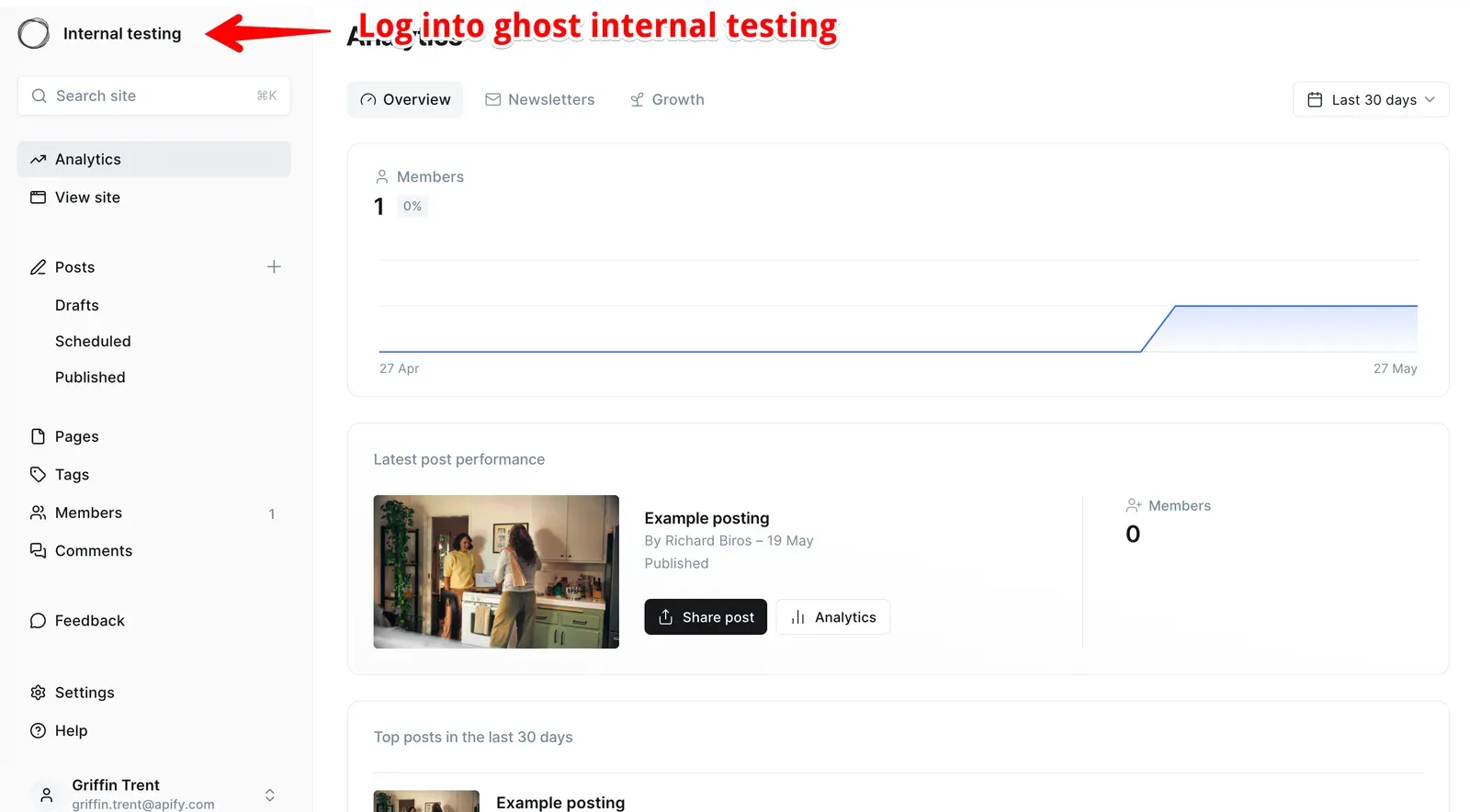
Keep this tab open. You'll come back here to preview and review your post before it goes public.
Step 2: Open Claude Code and paste the repo URL
Open Claude Code - the desktop app or VS Code extension both work. Paste the blog repo URL into the chat and ask Claude to help you write a post:
https://github.com/apify/apify-blog

Help me write a new blog post for the Apify blog.
Claude downloads the repository files and loads the write-blog-post skill from them. The skill includes the full Apify style guide, the approved tag list, and a validation checklist. You don't need to set anything else up.
Tip: Plain language works - "help me write a blog post" or "check my article before I publish" are enough to trigger the skill. If you already have a draft written somewhere else, paste it directly into the chat and Claude will reformat it and fill in the metadata.
Step 3: Write your article
Tell Claude the topic, your author name, and that this is a draft:
I want to write a post about [topic]. My author name is [your name, e.g. griffin]. This is a draft.
Finding your author name: Your author name is a short lowercase identifier - for example, griffin or sarah. Find yours by going to Ghost Admin > Staff and opening your profile. Your author name is the last part of the URL on that page (e.g. .../staff/griffin/ means your author name is griffin).
Claude builds the article with you and handles the metadata automatically. Every post needs a title, an author, two to four tags, a status, and a short excerpt under 160 characters. When you're ready to publish, you'll also need a publish date - Claude will prompt you for it.
On tags: Claude only suggests tags from the approved list. Using an unapproved tag doesn't break anything, but Ghost creates an orphan tag that requires manual cleanup later. Let Claude pick the tags.
Step 4: Publish and review on Ghost
When you submit your post, Claude sends it to Ghost in the background. This is called a sync. There are two stages:
Draft: Sends your post privately to Ghost for internal preview. Nothing is public yet.
Published: Makes the post publicly live on the Apify blog within seconds - no waiting period, no extra confirmation. Always sync as a draft first and get editor sign-off before going to published.
When your article is ready, tell Claude you'd like to submit it for review:
Submit this post for review as a draft.
Claude opens a pull request on GitHub and applies the sync-to-ghost label - this is the trigger that sends the post to Ghost. You'll see a link to the pull request in Claude's response. A preview link for the Ghost draft is posted inside that pull request - share it with your editor for sign-off.
Once the article is approved:
- Tell Claude to change the post status to published and add today's date as the publish date
- Claude pushes the change and re-applies the
sync-to-ghostlabel - The post goes live on the blog as soon as the upload finishes
If the post doesn't appear in Ghost within a few minutes, tell Claude to re-sync it. Claude will remove and re-add the sync-to-ghost label to force the update. If it still doesn't appear, contact your editor.
After publishing, head back to Ghost Admin (the internal preview site from Step 1) for a final visual check.
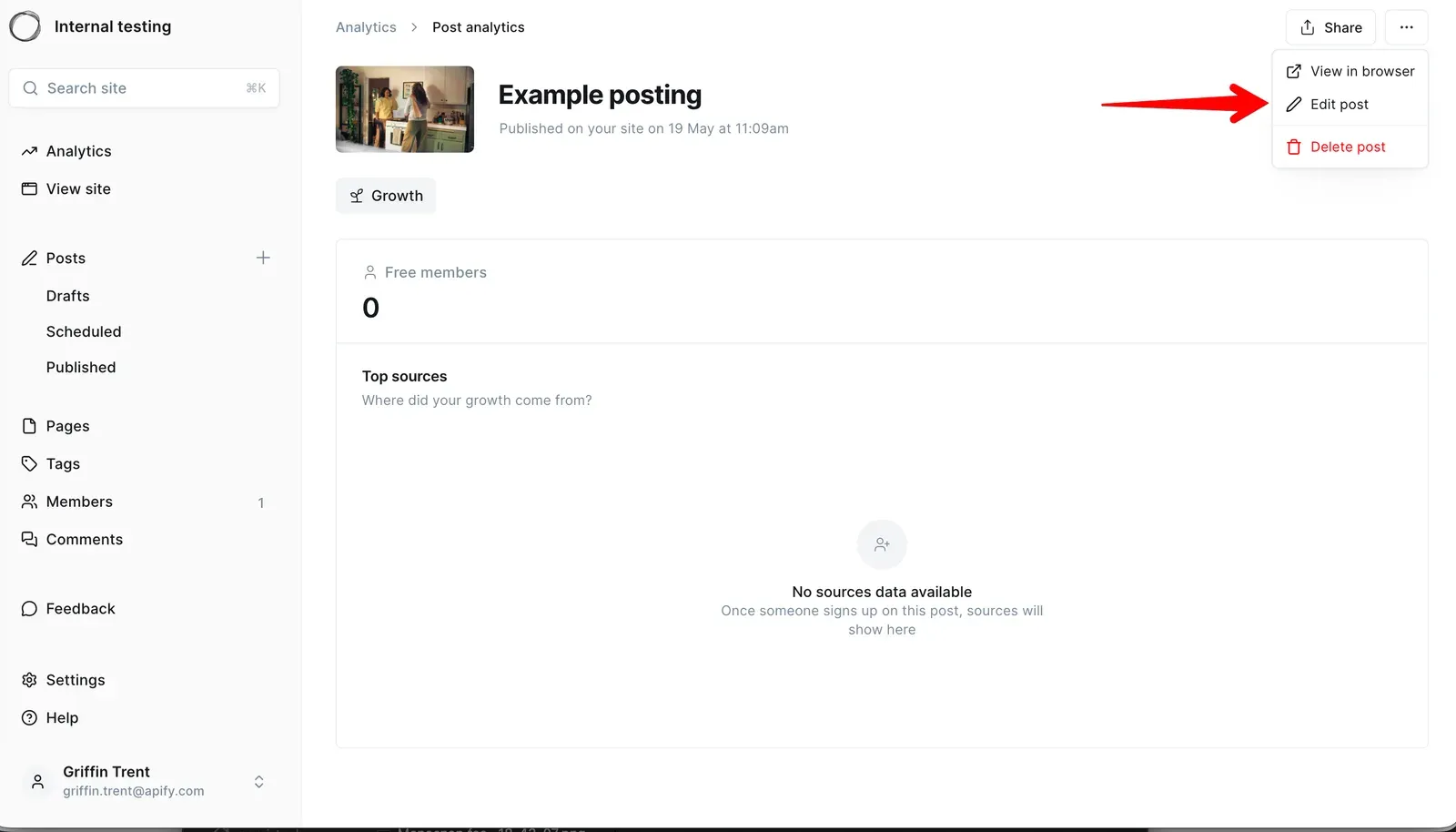
Click the three-dot menu in the top right and select Edit post to open it for review.
Editing, unpublishing, and controlling the blog
Everything in the blog is controlled through Claude - not Ghost directly. Any edits made directly in Ghost will be overwritten the next time Claude sends an update.
Editing a published post
Before making any edit, ask Claude to confirm the post status:
Every sync sends the entire file to Ghost - including the status field. If the status isdraftwhen a sync runs, your published post will be taken offline immediately, with no warning. Always confirm the status ispublishedbefore syncing any change to a live post.
Edits to a published post go live immediately when the sync runs - they skip the draft review stage. If you want your editor to review the change first, ask Claude to set the post back to draft, get sign-off on the preview, then re-publish.
Tell Claude what you want to change:
I need to update the [section name] in my post. Change [what to change].
Claude makes the edit and syncs it to Ghost. If the change doesn't appear after a few minutes, tell Claude to re-sync the post.
Unpublishing a post
Before you unpublish: Changing a post to draft removes it from the public blog immediately. The post is not deleted - it stays in Claude and Ghost as a private draft. You can republish it any time by telling Claude to change the status back to published.
Tell Claude:
Unpublish my post about [topic] - change it back to draft.
Claude updates the post and syncs the change to Ghost. The post will disappear from the public blog as soon as the sync completes.
Checking your post's current status
At any point you can ask Claude about the state of your post:
What's the current status of my post? Is it published or in draft?
Claude reads the file and tells you exactly what's in it - status, tags, publish date, and any issues it spots.
Don't edit posts directly in Ghost. If you spot a typo or need to update a section, go back to Claude and make the change there. Any edits made directly in Ghost will be overwritten the next time Claude sends an update.